

The app page
Opening an app shows the conversation on the left and the app on the right. The bar along the top switches between Build, where you work on the app, and Dashboard, the app’s settings. Beside them, Preview and Canvas choose how you see the app.
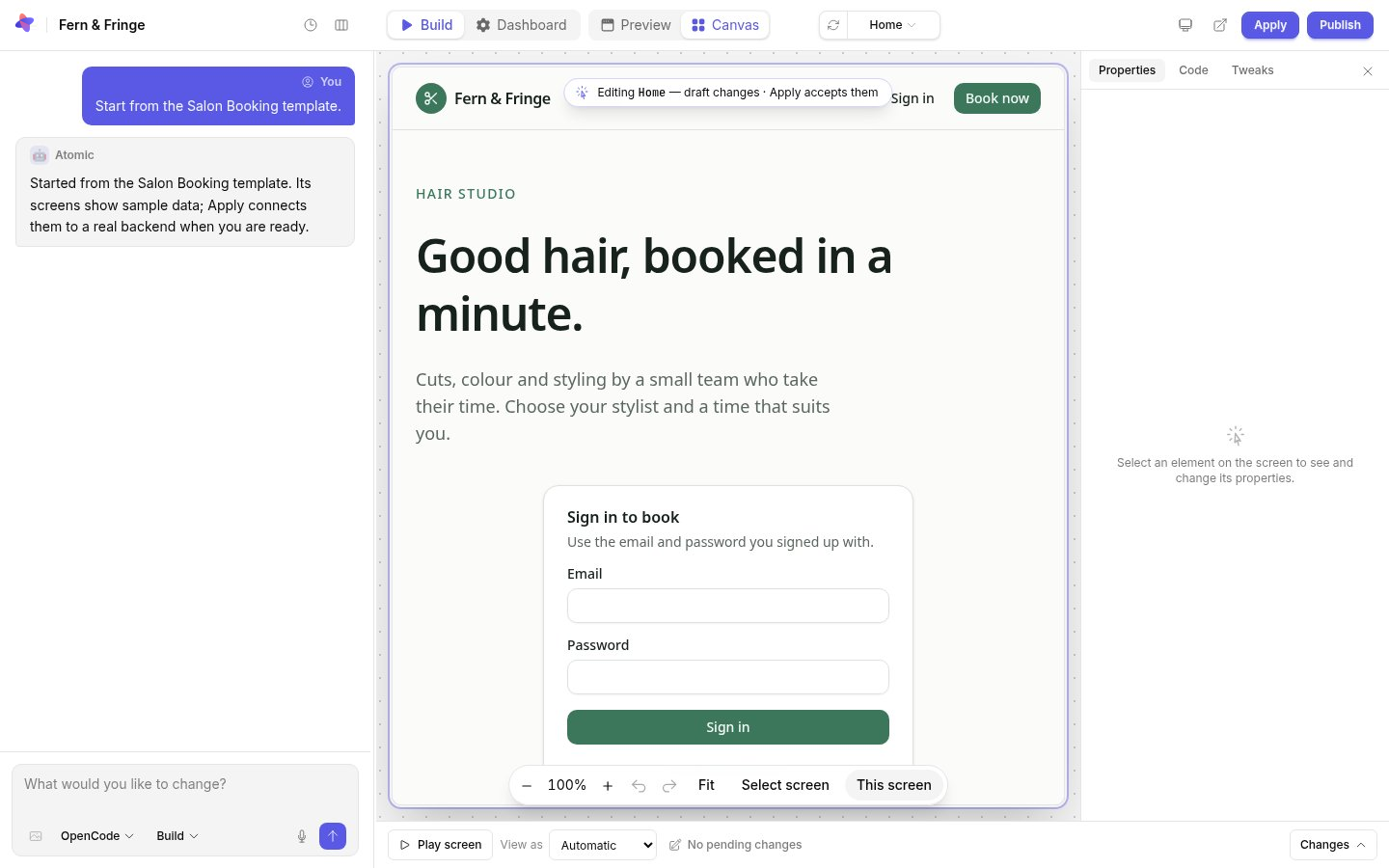
- Canvas shows every screen running on sample data, ready to select and edit.
- Preview shows the app as its users will get it, at the size you choose under the screen icon: desktop, tablet or mobile. The icons beside it reload the preview or open it in a new tab.
Every screen on one board
The canvas lays out every screen of the app on a board, one row per screen, with that screen’s states, such as an open dialog or an empty list, beside it. Each tile is the real screen, running.
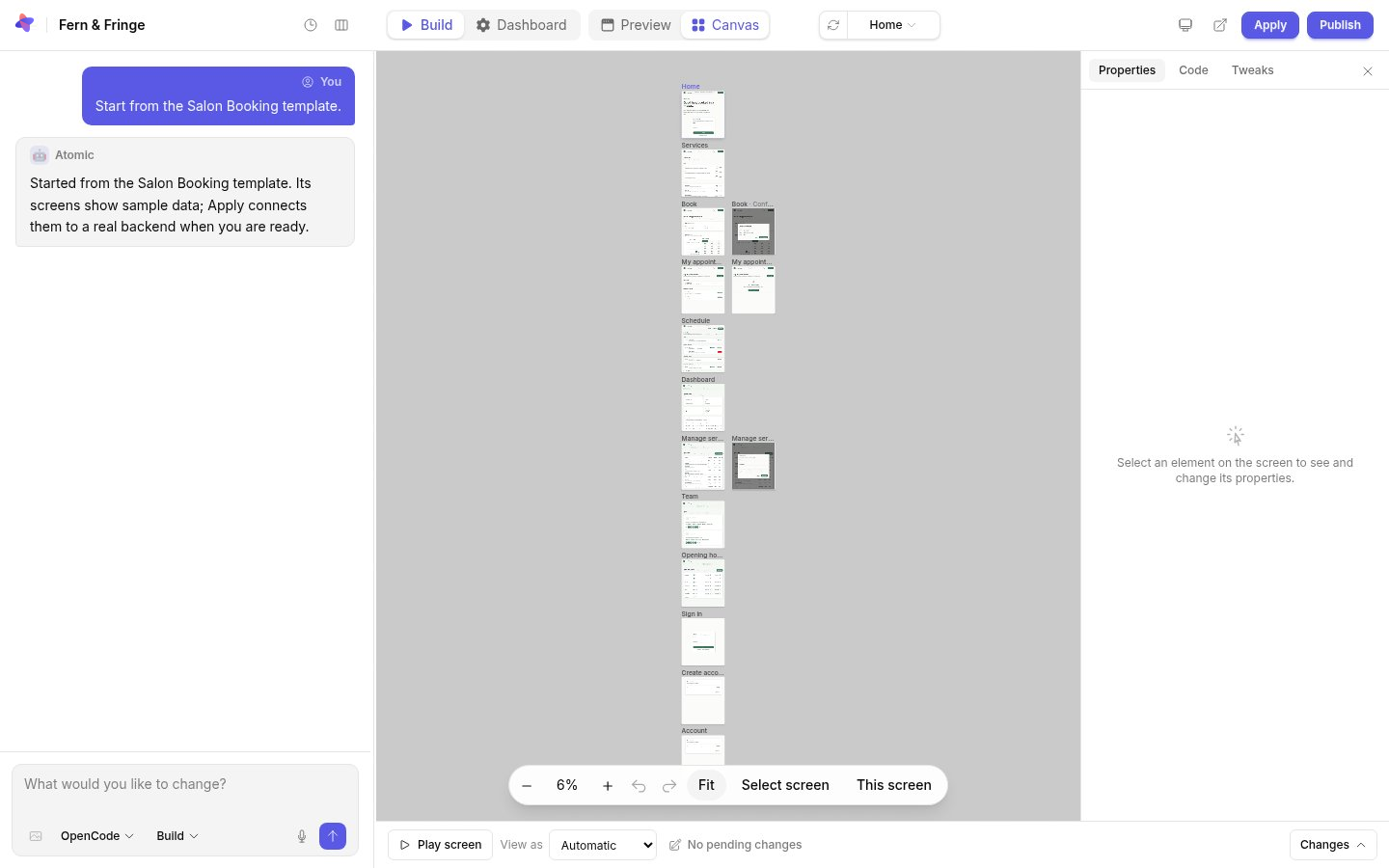
- Drag or scroll to move around. Hold Ctrl or Cmd and scroll, or pinch, to zoom; +, - and 0 work too.
- Fit shows the whole board. This screen brings the screen you are editing back to full size.
- Click a tile, or choose a screen from the menu in the top bar, to open it. See screens, states and roles.
Sample data
Screens on the canvas run on the app’s sample data: believable records and an account for each role. Creating, changing and deleting records works, so forms and lists behave as they will for real, but nothing you do there is saved. The sample accounts are never published; how the sample records reach the real backend is explained in how your app’s data works.
View as each role
View as, under the canvas, opens the screen as a particular kind of user: Signed out, Signed in as an ordinary member, or any of the app’s roles. Automatic opens each screen as the role it is for. Signed in as a role, a screen shows the records that role’s sample account owns as its own.
Play a screen
Normally a click on the canvas selects what is under the pointer, ready to edit. Select Play screen to use the screen instead: buttons, links, dialogs and forms work against the sample data. Reset data starts the sample data over, and Select element goes back to editing.
Drafts and Apply
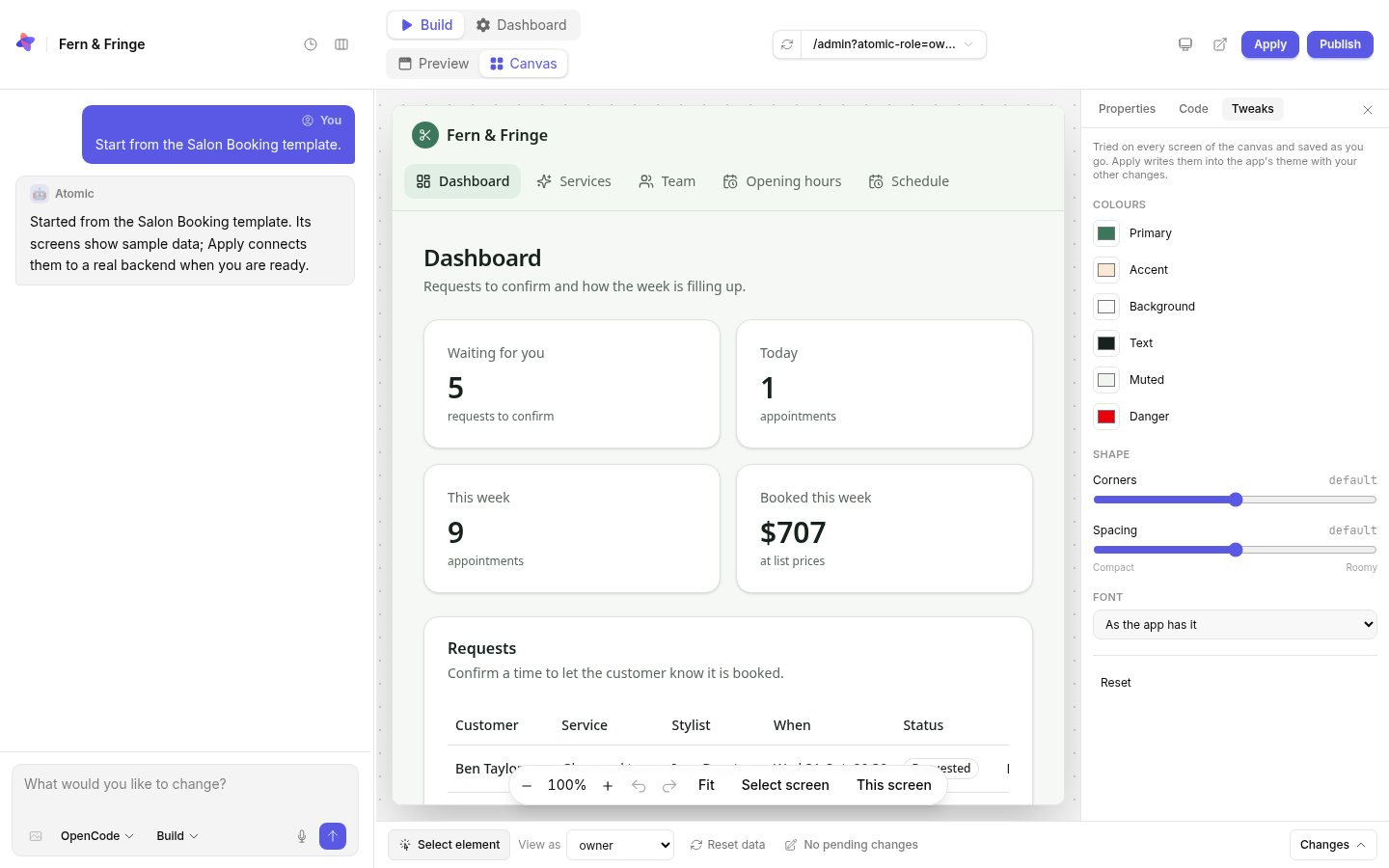
Edits you make on the canvas are drafts. The bar under the canvas counts them, and Changes lists them. Apply, at the top right, accepts every draft: Atomic writes the changes into the app’s source, connects the screens to a real backend if they are not connected yet, and checks the result as a new version. See editing on the canvas.