

What a workspace is
A workspace holds apps and the people who build them. You start with a personal workspace. Create more to keep a team’s apps together: everyone in a workspace can build its apps.
Workspace members are builders. The people who use your finished apps are app users, a separate list kept by each published app.
Choose where new apps go
Open Workspaces in the sidebar to see every workspace you belong to. To create one, enter a name and select Create workspace.
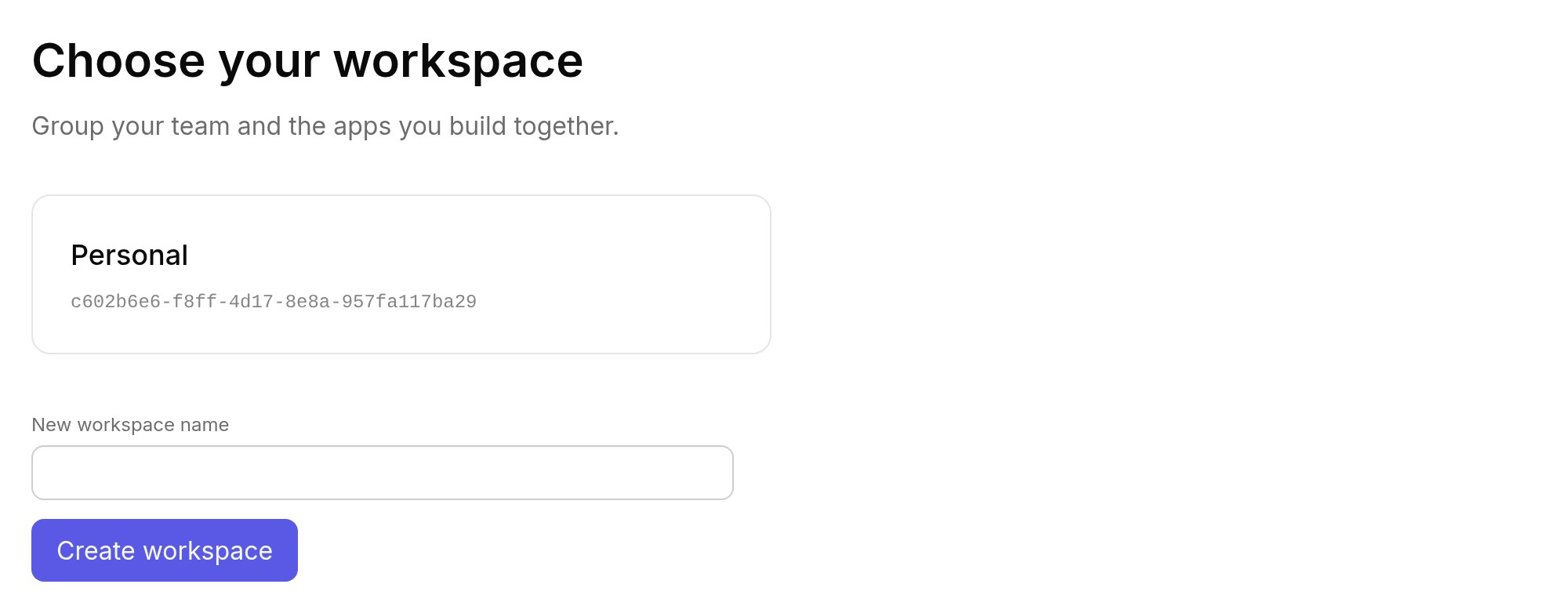
Open a workspace and select Use this workspace to make it the place where the dashboard and Apps create new apps. The current workspace is shown at the top of the dashboard, with Switch to change it. You can also select New app on a workspace’s page.
Each workspace page shows its Workspace ID. Include it, with the time and any error message, when you report a problem.
Invite teammates
On the workspace page, under Invite a builder, enter your teammate’s email, choose a role and select Create invitation link. Send them the link yourself.
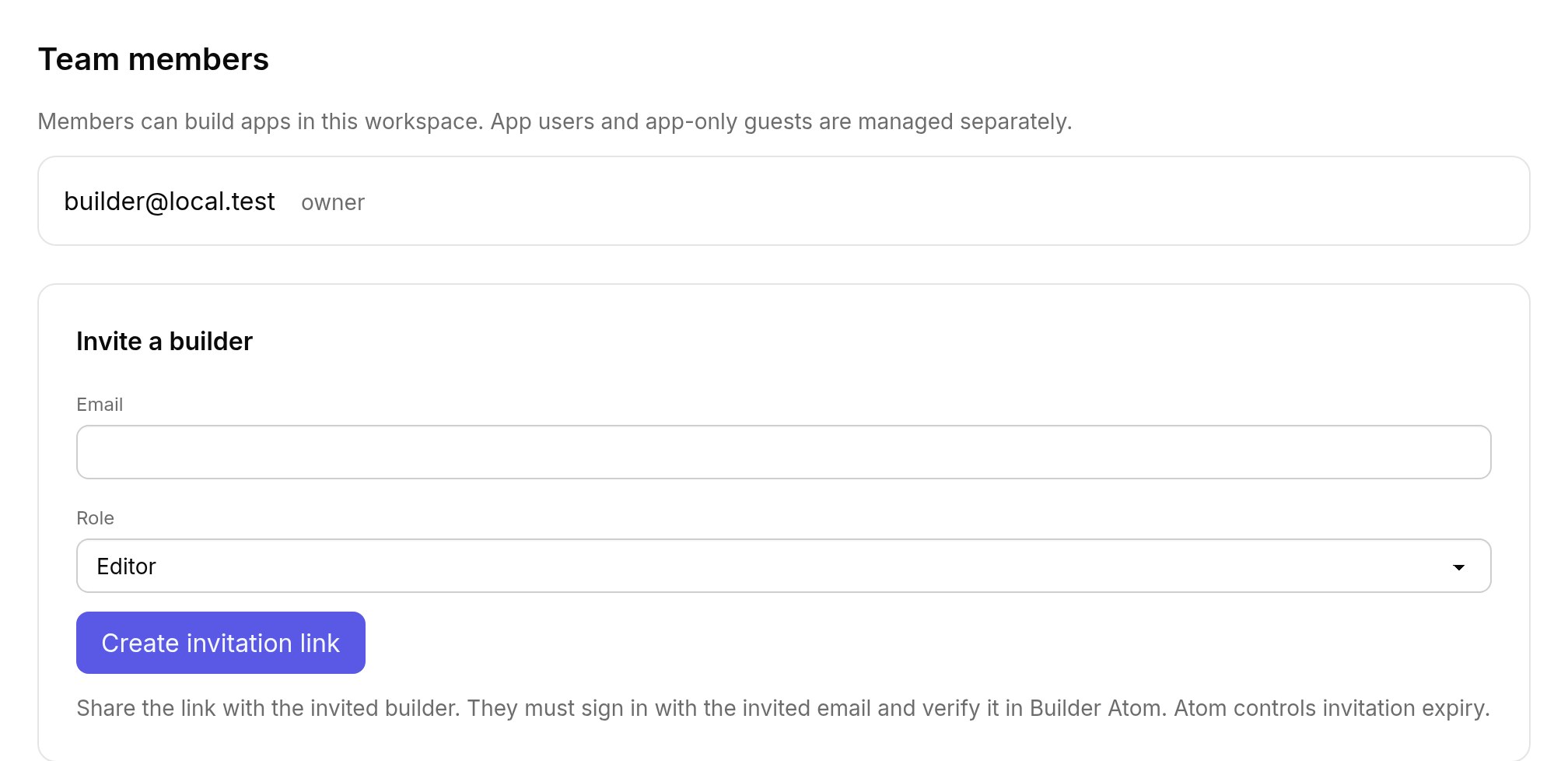
Your teammate must sign in with the invited email address and have it verified. Treat the link like a password: anyone holding it can try to accept it, and it should not be posted publicly.
Workspace roles
| Role | Can |
|---|---|
| Owner | Build apps, invite admins and editors, remove members other than owners |
| Admin | Build apps, invite and remove editors |
| Editor | Build apps; cannot manage members |
Owners and admins can revoke a pending invitation within their role. Remove workspace access takes away the access a member had through the workspace.
Someone can also be invited to a single app as a collaborator. That access is separate: removing a person from the workspace does not remove an app they were invited to directly. Remove them in that app’s settings as well.
Changing a member’s role and transferring ownership are not available in the workspace page yet.