

Building
| What you see | What to do |
|---|---|
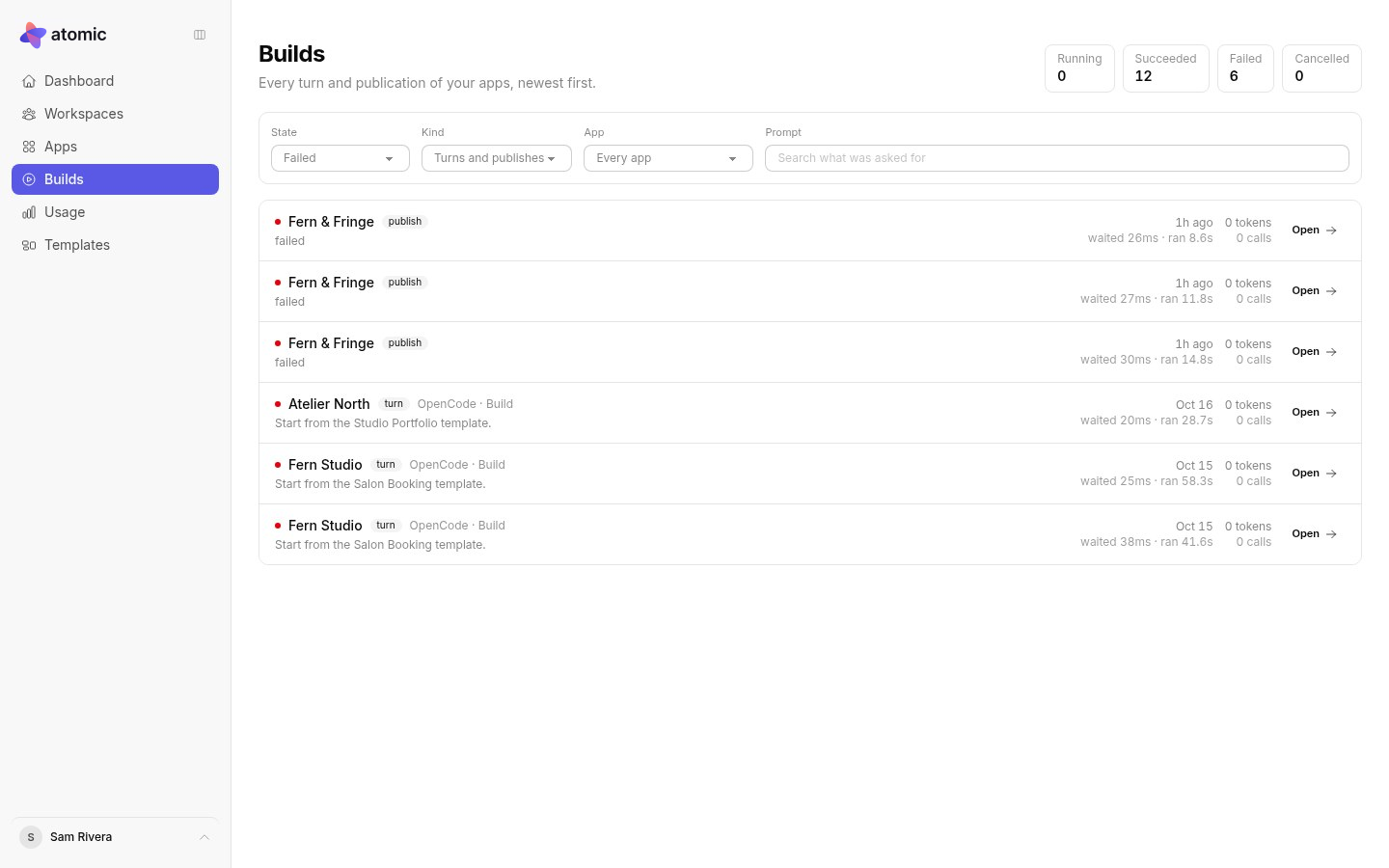
| A build stays queued | It is waiting for capacity and will start on its own. Check its state on the Builds page. |
| Not verified | The build failed a check. Read the conversation for the reason and ask for a fix. The previous verified version is still there. |
| Atomic offers “Change the backend” | Your request changed nothing on the screens. Accept if it was about how the app stores or handles data. |
| New builds are refused | You may be out of credits for now. See when credits run out. |
| The preview is blank or stale | Use the reload icon in the top bar. Check logs for errors from the app. |
Publishing
| What you see | What to do |
|---|---|
| Publish is greyed out | The latest version must be verified, no build may be running, and you must be the owner or an admin. |
| “Apply the screens first” | The app still runs on sample data. Select Apply to connect its backend, wait for Verified, then publish. |
| The published app differs from the preview | Later changes stay in the preview until you publish again. Check the live deployment in the app’s settings. |
| Nobody can sign in to the published app | Sample accounts are not published. Invite your first admin and your app users. |
| A custom domain will not connect | Check both DNS records, keep the TXT record, and turn off any DNS proxy until it connects. See custom domains. |
Accounts and invitations
| What you see | What to do |
|---|---|
| An invitation cannot be accepted | Sign in with the invited email address and make sure it is verified. Invitations to apps last seven days and work once; ask for a new one if it has expired. |
| The verification email did not arrive | Use Verify your email or request a new link on the log-in page. |
| “Invite user” is not available | App users are kept by the published app. Publish first, and choose open sign-up or invite-only access. |
| A reconnecting banner keeps appearing | Refresh the page once. If it continues, contact the team with the page address and the time. |
Reporting a problem
Include the app’s ID (shown in the app’s Dashboard) or the workspace ID, the time, what you did and the exact message you saw. Logs downloaded from the app help too. Never send passwords, invitation links or other secrets.
Contact the Atomic team at info@absmach.eu.