

Version history
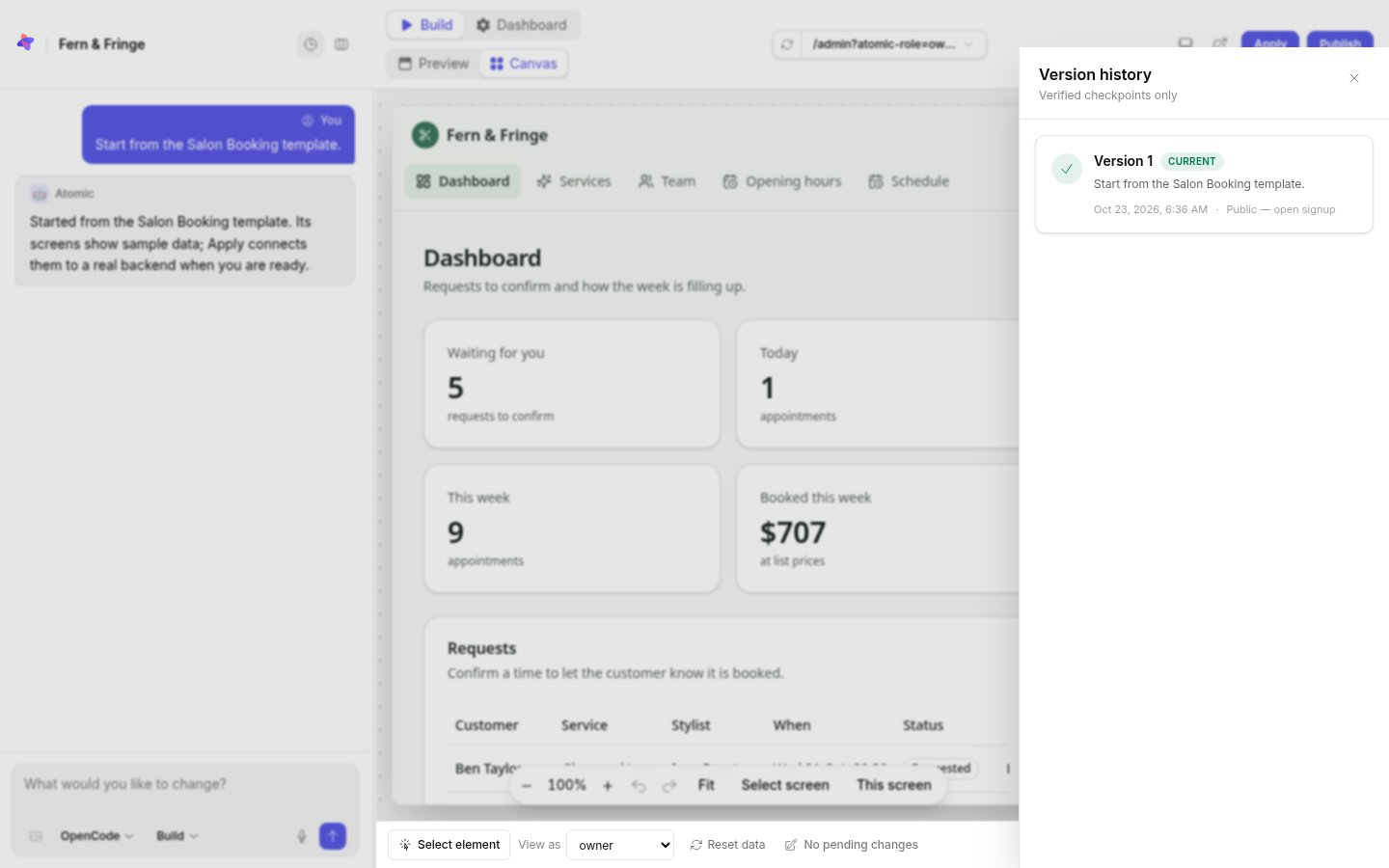
Every build that passes its checks becomes a version. Open Version history with the clock icon beside the app’s name. It lists verified versions only, newest first, each with the request that made it, when it was made and the app’s access mode at the time. The current one is marked Current.
Restore a version
Select Restore this version on an earlier version to make it the source you build on again. Atomic restores it in the background; you can leave the page and come back. If the restore fails, your verified history is still there.
- Restoring changes the working source only. It does not change the published app until you publish again.
- It does not touch any data: not the preview’s, and not the published app’s.
- To put an earlier release back in front of visitors straight away, use deployment history instead.
How long versions are kept
Atomic keeps an app’s newest 20 versions, and always keeps the one that is published.