
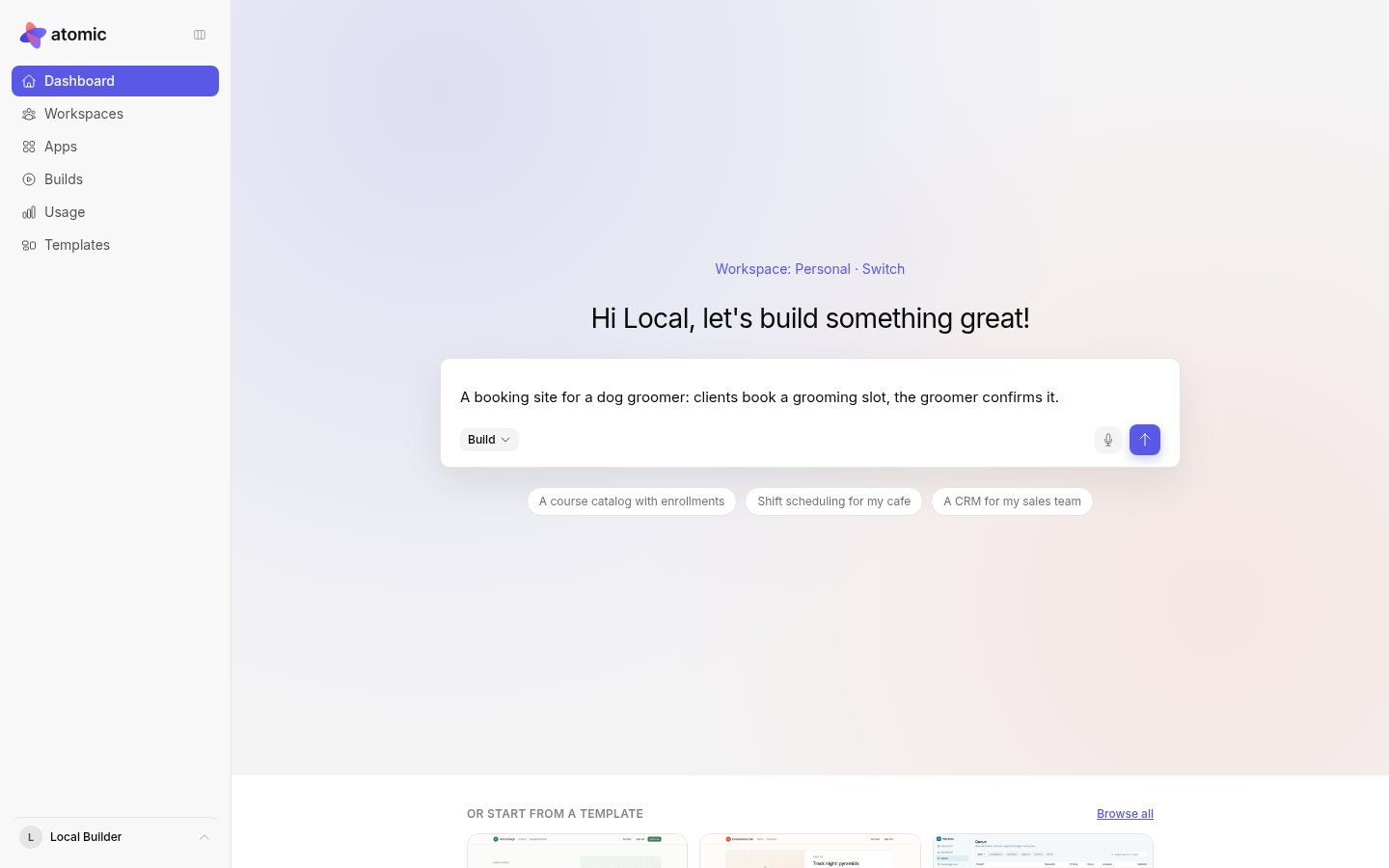
Start a new app
On the dashboard, type what you want to build in the box under the greeting and select Build. The suggestions under the box fill it with an example to start from. You can also select New app on the Apps page or on a workspace’s page. The app is created in your current workspace.
Before the first build, Atomic offers a few design choices. Every one is optional.
Write a useful first message
Say who uses the app, what each of them does, and what they should and should not see. A small, concrete app is a better start than a long wish list.
A booking site for a dog groomer. Clients choose a service and request a grooming slot. The groomer confirms or declines requests and sees the week’s schedule. A client sees only their own bookings.
From idea to first app covers writing a brief in more detail.
Borrow a look
Put a website’s full address in your first message, for example “a bakery site that looks like https://example.com”. Atomic reads the page’s colors, fonts and section layout, and the first build designs from them. A site that draws itself with JavaScript gives less to go on.
You can instead attach screenshots or a mock-up with the image button beside the message box: PNG, JPEG, WebP or GIF, up to four images of 5 MB each. The first build writes its design from them.
If you have neither, Atomic may start from the closest design in its own library.
Build from a Figma design
Attach the design itself; a Figma link is not read. Either:
- a
.figfile saved with Figma’s Save local copy, up to 50 MB. Reading these files is experimental, because the format is Figma’s own and undocumented; or - frames exported as SVG, with Outline text off and Include id attribute on.
Images and voice in later messages
You can attach images to any later message too, for Atomic to look at during that request, such as a screenshot of something that looks wrong. Attached images are never added to the app itself.
Select the microphone to dictate a message instead of typing it. Atomic turns the recording into text in the message box for you to check before sending. Dictation counts toward the app’s usage like its builds.
Choose the agent and mode
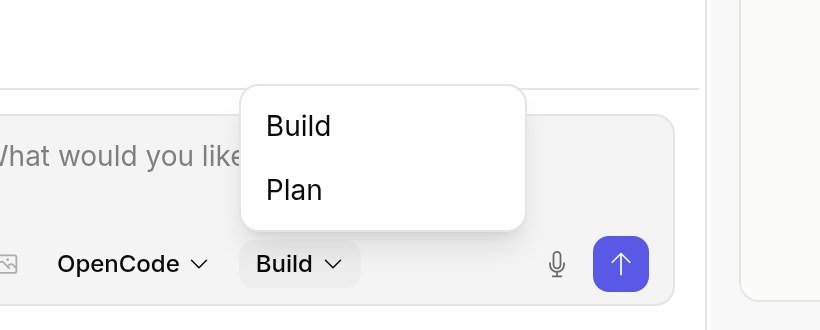
Two menus sit under the message box:
- The agent menu lists the AI agents your Atomic offers for building. The choice applies to your next request.
- Build or Plan: Build changes the app. Plan answers with suggestions and changes nothing, which is useful for thinking a change through before you make it.