

What a template gives you
Instead of describing an app from scratch, you can start from one that already works. Each template brings three things together:
- Screens: the pages, forms and dialogs of the app, styled with its own theme.
- Backend configuration: the kinds of records the app keeps, the roles people can have, and what each role may see and change. Atomic sets this up on Atom, the backend underneath every app.
- Sample data: a small set of realistic records and a sample account for each role, so the app has something to show from the first minute.
Setting up a template calls no AI model and uses no building credits. The app opens straight away on the template’s screens, running on its sample data, ready to try and edit on the canvas.
The templates
Open Templates in the sidebar, or Or start from a template on the dashboard. You can search the gallery or narrow it by category.
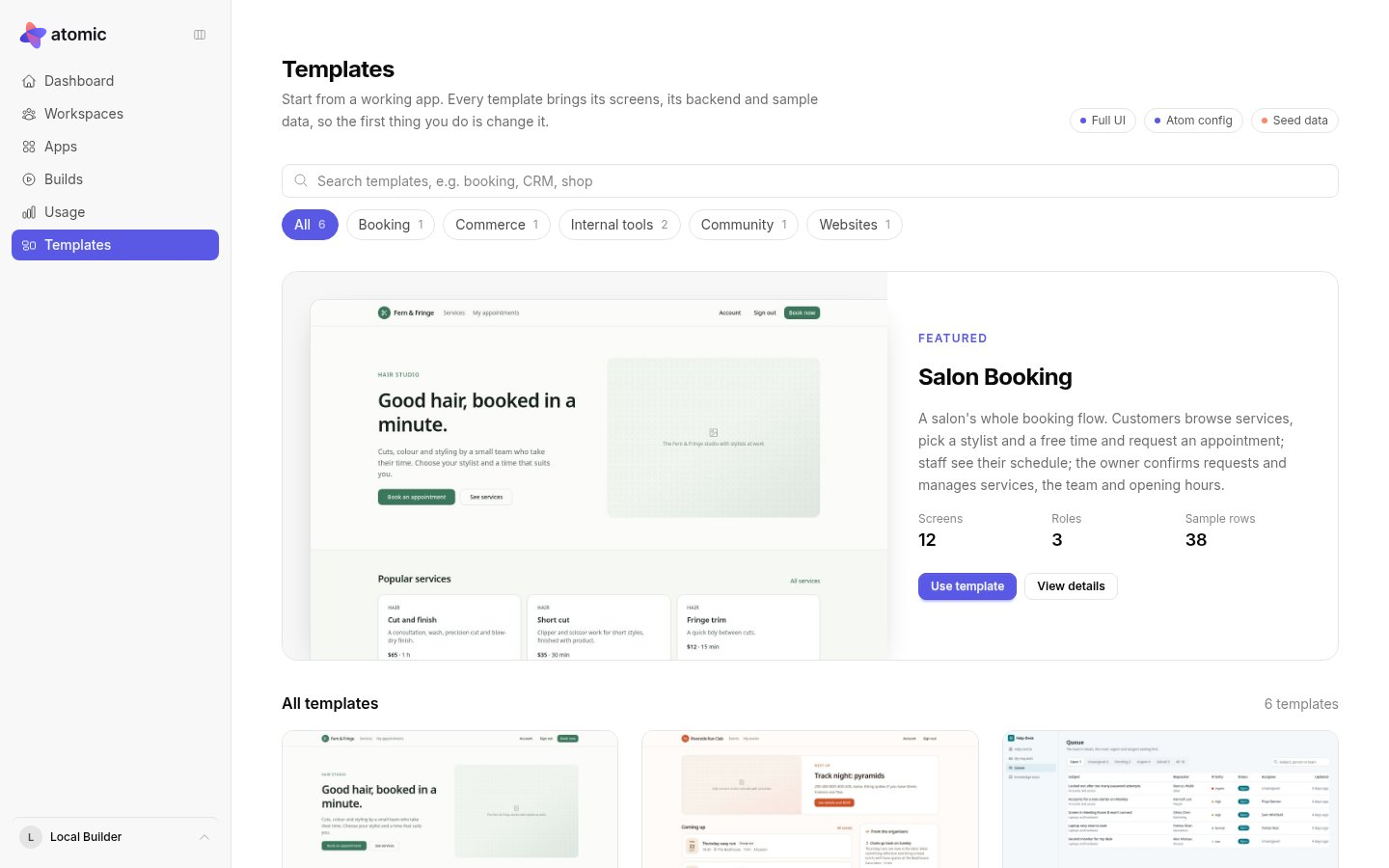
| Template | What it does | Who uses it |
|---|---|---|
| Salon Booking | Services, stylists and opening hours, online booking, a day view for staff and an owner dashboard. | Customers sign up; owner and staff accounts |
| Pipeline CRM | Companies, contacts and deals on a stage board, with an activity log and a sales dashboard. | Invited team; admin and sales roles |
| Storefront | A product catalogue with categories, a cart and checkout, order history and a shop manager. | Customers sign up; admin account |
| Help Desk | Requests with an agent queue, internal notes and a knowledge base. | Invited requesters; admin and agent roles |
| Club & Events | Events with RSVPs, announcements, and an organiser’s roster and check-in. | Members sign up; organiser role |
| Studio Portfolio | A design studio’s public site: selected work, case studies, services and a contact page. | Public visitors; no accounts |
Templates that ask people to sign in come with Atomic’s sign-in and account screens for that kind of access: open sign-up, or invitation only. A public template, such as the portfolio, has none.
Try it before you use it
A template’s page runs the app itself, on its sample data, right in your browser. It is the same preview you get on the canvas when you press Play:
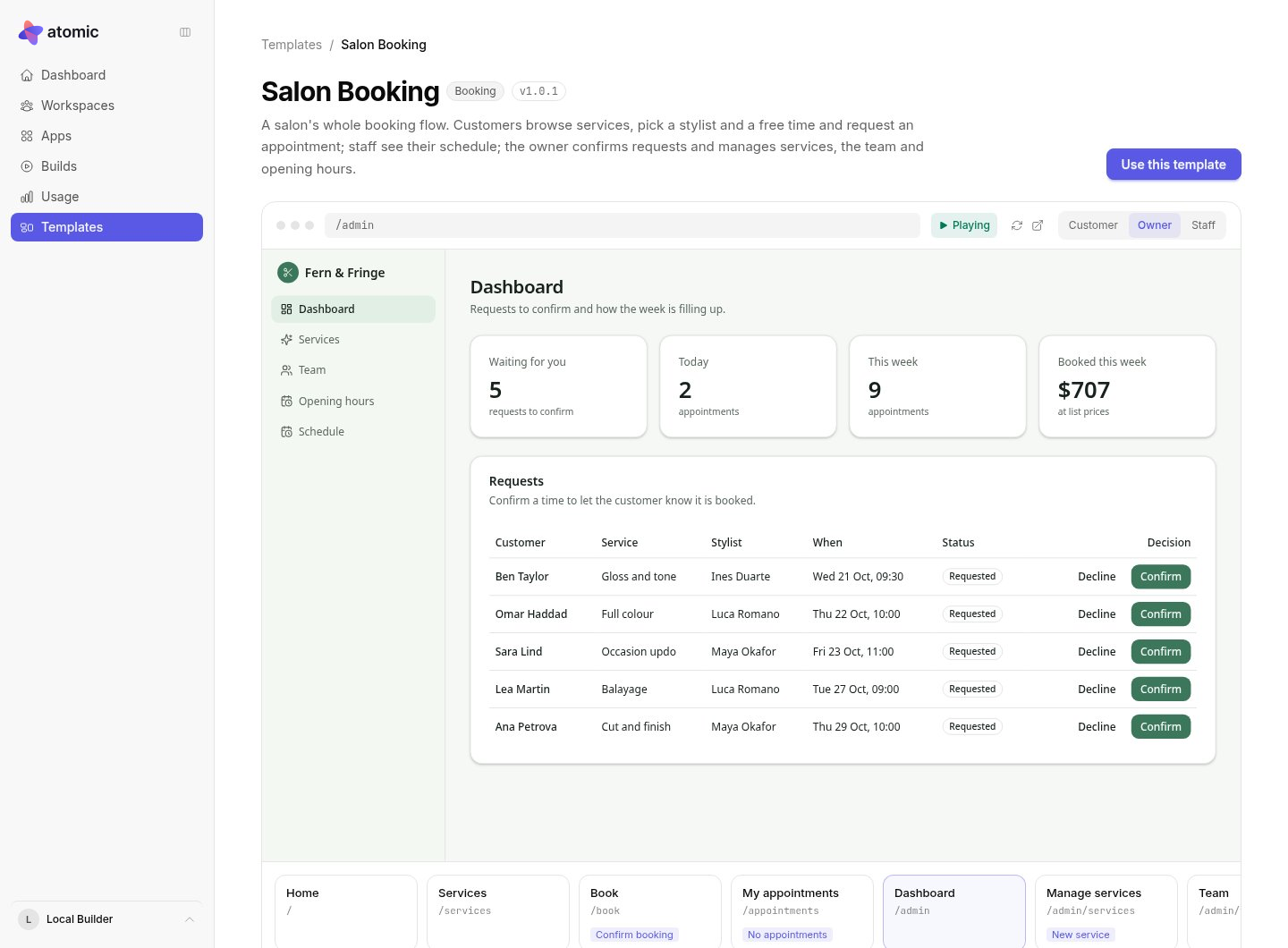
- Click through it, open its dialogs and fill in its forms.
- Switch View as to see the app as each role, signed in as that role’s sample account, with that account’s own records.
- Pick a screen, or a state such as an open dialog, from the strip below the preview to jump straight to it.
- Use the reset button to start again, or open the preview full size in a new tab.
Nothing you do there is kept. The page also lists the sample records the template brings and the record kinds its backend holds, so you know what you are starting with.
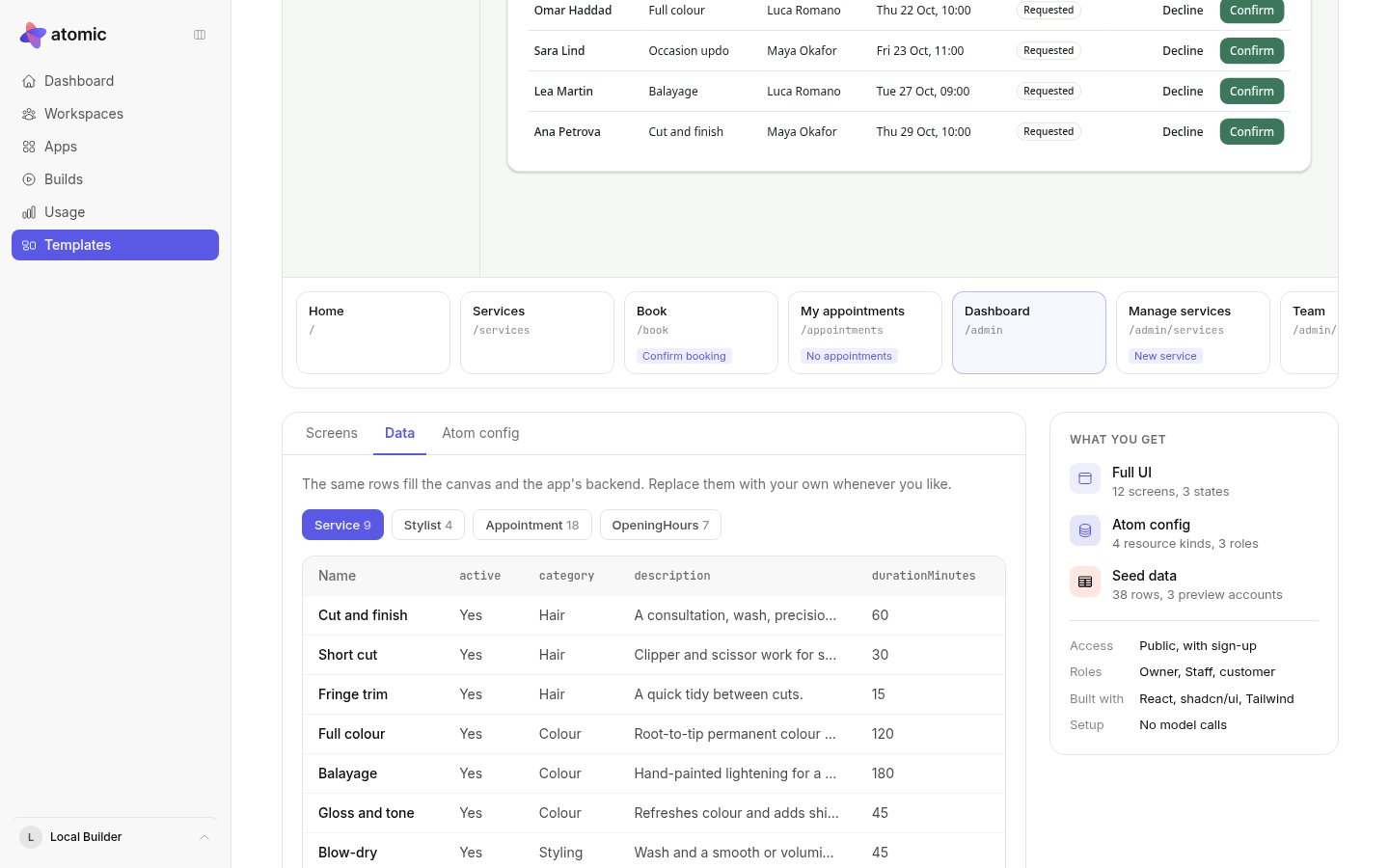
The first time a template is opened, the preview may take a few moments to prepare; the page says so and starts playing once it is ready.
Use this template
Choose Use this template, give the app a name, and Atomic creates it in your current workspace. You can choose whether to include sample data in the backend:
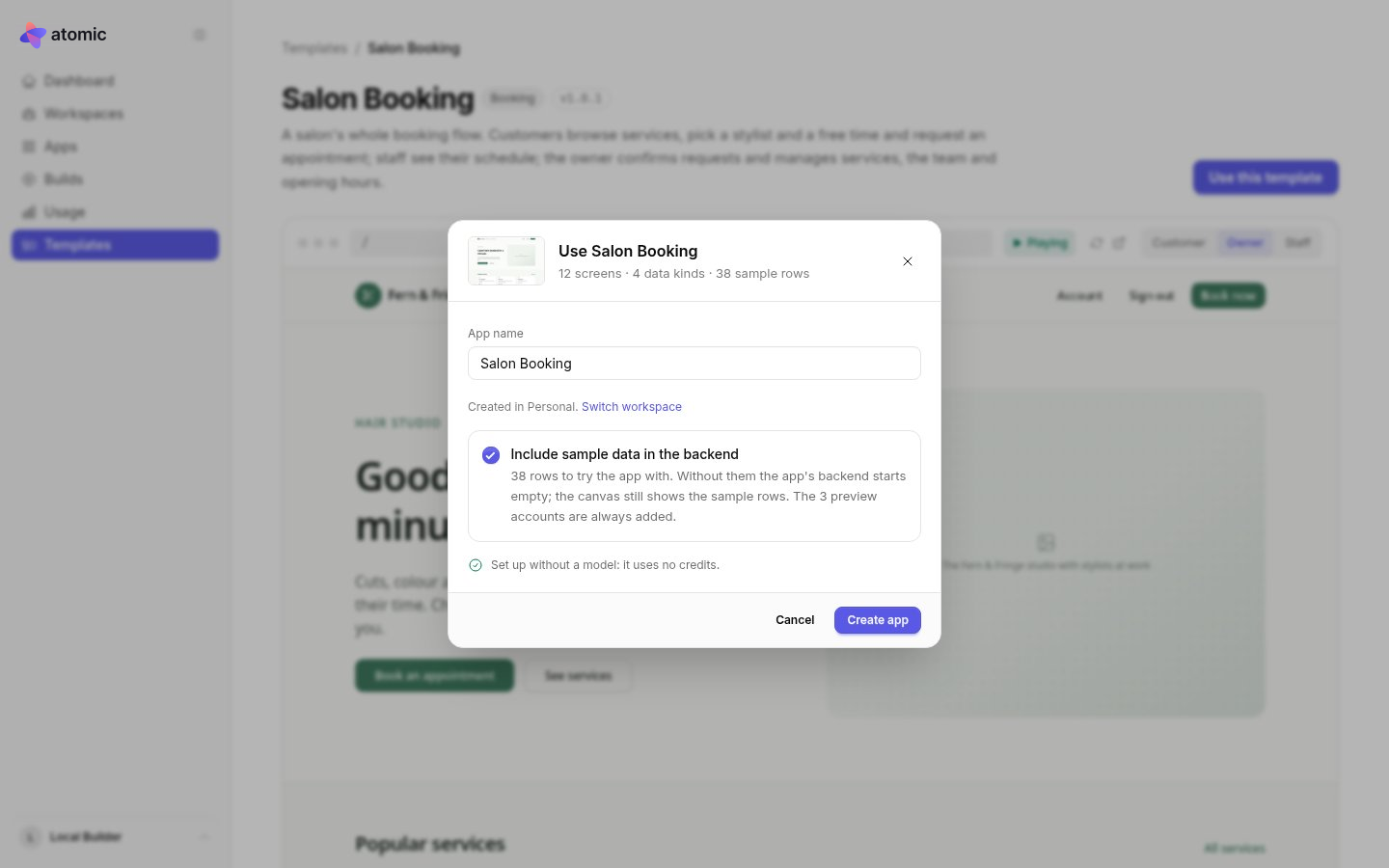
- On: the app’s backend starts with the sample records, which is the quickest way to try every role.
- Off: the backend starts empty, apart from the sample accounts used to try each role in the preview. The canvas still shows the sample records while you work.
The app records which template and version it started from. After that it is an ordinary Atomic app, with its own source, versions and preview.
To publish it, select Apply. A template’s screens and backend were written together, so applying them as they are calls no AI model and uses no credits: Atomic builds the app with its real backend and checks it. Changes you make first are built by Atomic’s agent, like any other request. Once the app is Verified, you can publish it.
Make it yours
A template is a starting point, not a constraint. Describe changes the way you would for any app: rename it, restyle it, add a screen, or change who may do what. Atomic’s assistant is told which template the app came from and how its data is organised, so it can work with what is already there.
Rename the salon to Northside Hair, use a warm terracotta accent, and let staff mark an appointment as no-show.
Before you share the app, replace what the template only stands in for:
- Text in brackets, such as [Your street address], is a placeholder to fill in.
- Pictures are labelled placeholders that describe the image they are waiting for.
- Sample records are there to try the app. Remove them, or start without sample data, before real people use it. In the backend every sample record starts out shared, so some that are meant for staff only can be read by other signed-in users until you remove them.
Sample accounts exist so you can try each role; they are never published with your app. Then work through the publishing guide as you would for any app.