

Screens
Every app keeps a list of its screens: each page, its address, a short name, and who can open it. Atomic keeps this list in step with the app’s pages and checks every screen on each build.
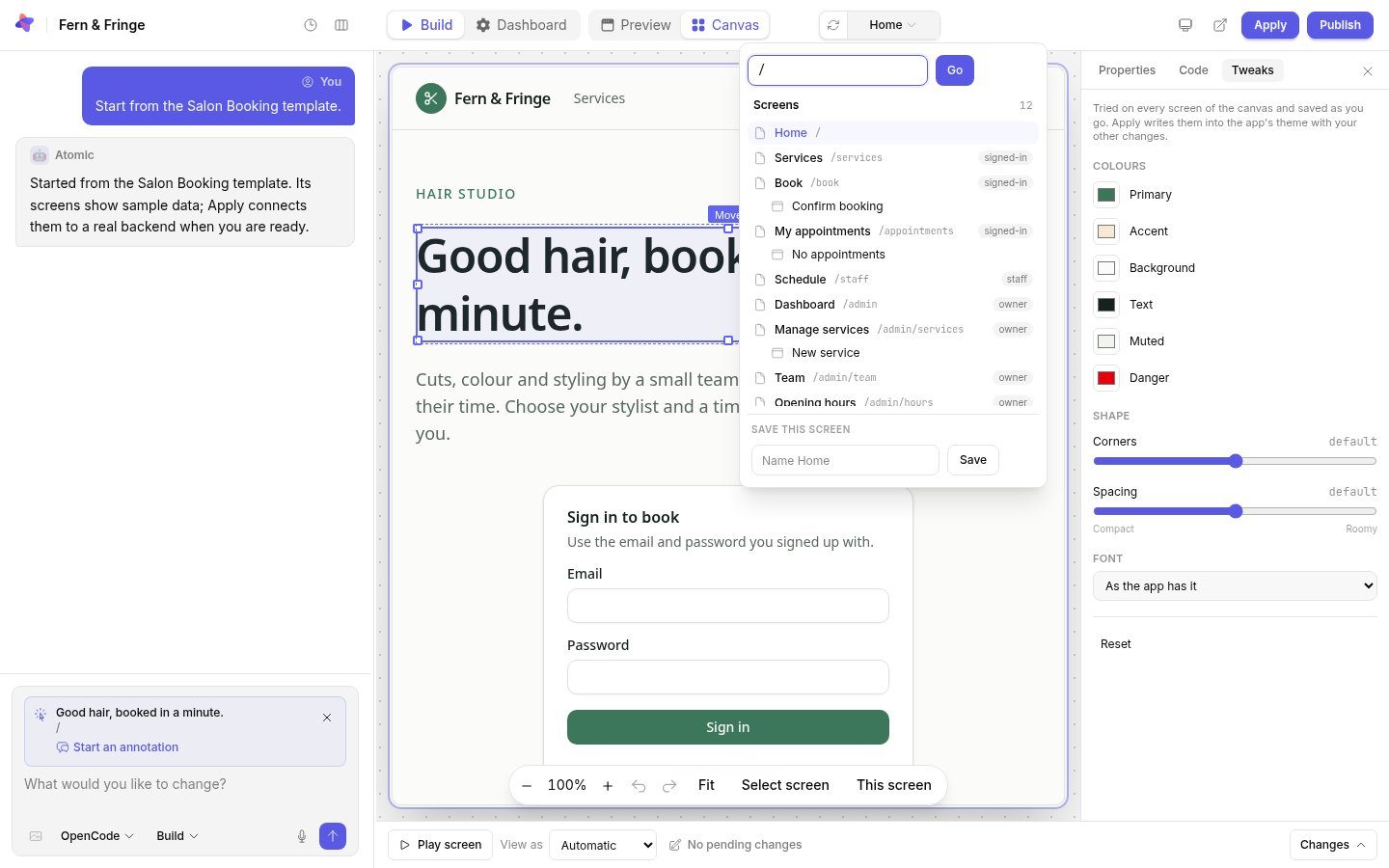
Open the screen menu in the top bar to go to any screen. Each entry shows its address and who it is for: anyone, signed-out visitors (such as sign-in), any signed-in user, or a particular role. Type to filter, or enter an address and select Go.
States
A state is a view of a screen you would otherwise have to click to reach, such as an open dialog or an empty list. States appear under their screen in the menu and beside it on the canvas, so you can open and edit them directly.
Saved screens
Name the current view under Save this screen at the bottom of the menu to come back to it later. Saved screens are shared with everyone building the app. Saving while an element inside a dialog is selected records that the dialog was open; opening the saved screen returns to its page and reminds you to reopen the dialog. Saved screens do not replay clicks, form entries or sign-ins.
Roles
An app can have as many roles as it needs, such as owner, staff or agent. A role decides which screens someone can open.
- Members are everyone who signs in without another role, such as customers. A member sees records shared with everyone and their own, never other members’.
- Every other role is staff, and can see and change every record in the app.
Each role has a sample account on the canvas, so you can try the app as that role with View as. In the published app, you give people roles in the app’s settings: see who can use your app.
Adding screens and roles
Ask for new screens, states and roles in the conversation, for example “add a screen where staff see today’s appointments”. Say who each screen is for. Atomic adds it to the list and checks that it opens as that role.