

Select an element
On the canvas, click any part of a screen to select it. A toolbar appears over the selection, and the Properties panel on the right shows what you can change.
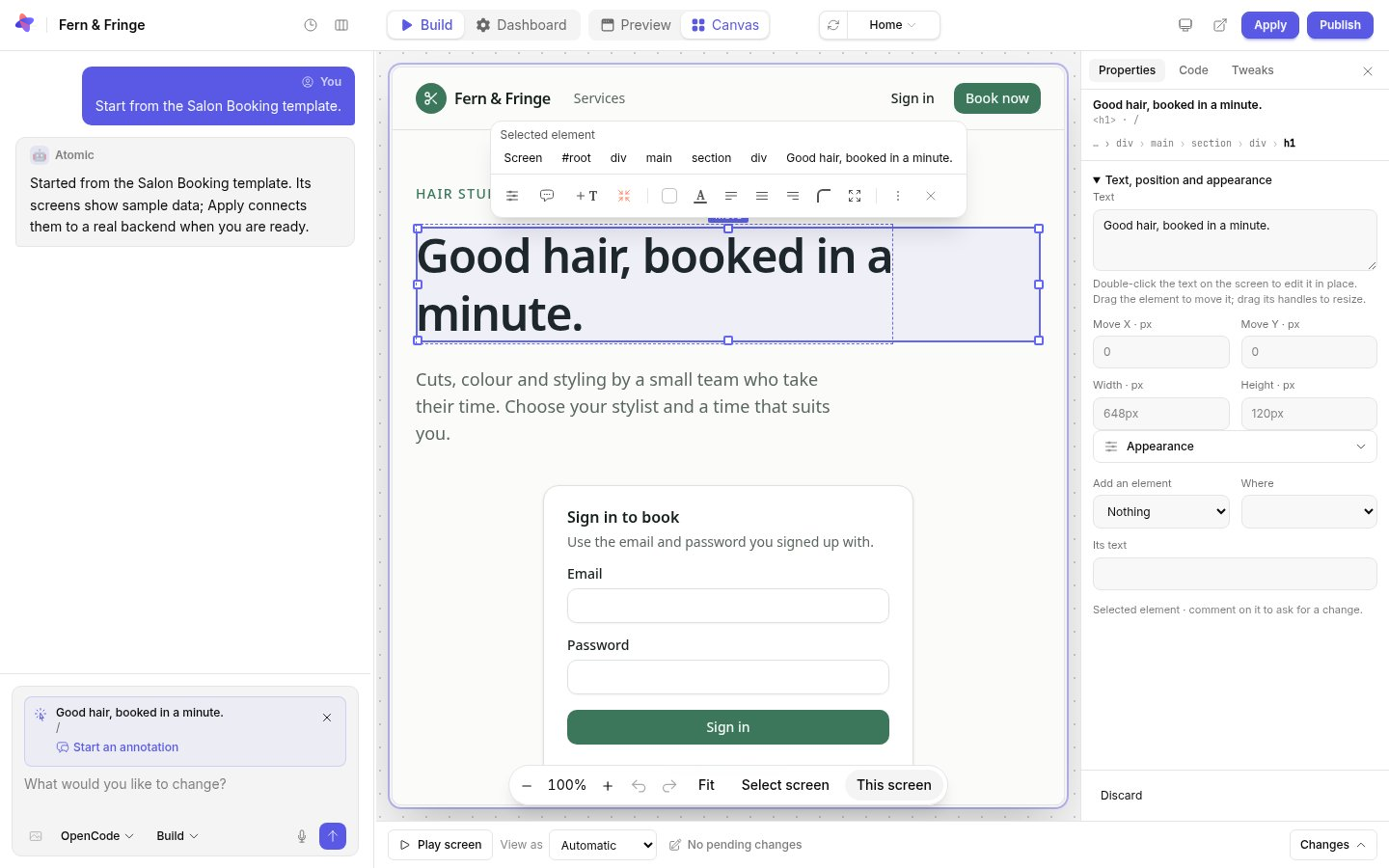
The toolbar holds the element editor, Annotate, Add text, and quick edits for fill and text color, alignment, corners and padding. ⋮, or a right-click, opens every command.
- The path across the top of the toolbar shows the element’s parents; click one to select it.
- Enter selects the first child, Shift+Enter the parent, and Tab or Shift+Tab the next or previous sibling.
- Shift-click adds or removes elements from the selection. Quick edits then change every selected element at once.
- Escape clears the selection.
Change text
Double-click text on the screen to edit it in place, or change it in the Text field. Enter finishes and Escape cancels that edit. Text stays plain text, up to 600 bytes. Elements that contain buttons, icons or form fields cannot be edited in place; describe the change in an annotation instead.
Move and resize
Drag a selected element, or its Move grip, to move it, and drag a corner or edge handle to resize it. Move X, Move Y, Width and Height take exact pixel values. With a handle focused, the arrow keys nudge by one pixel, or ten with Shift.
When you apply, Atomic turns the move into a proper layout change in the source, so it holds up at other screen sizes, rather than keeping the exact offset.
Colors, spacing and new elements
- Appearance changes typography, colors, padding and corners. Colors offered are the app’s theme colors, so your edits stay consistent with the rest of the app.
- Add an element adds text or a box before or after the selection. +T on the toolbar, or T, adds new text after it at once, ready to type.
- Discard takes back the selected element’s drafts.
See the code behind it
The Code tab shows the selected element’s layers, the source file and line it comes from, its classes and its computed styles. Pick a layer there to select it.
Tweak the whole theme
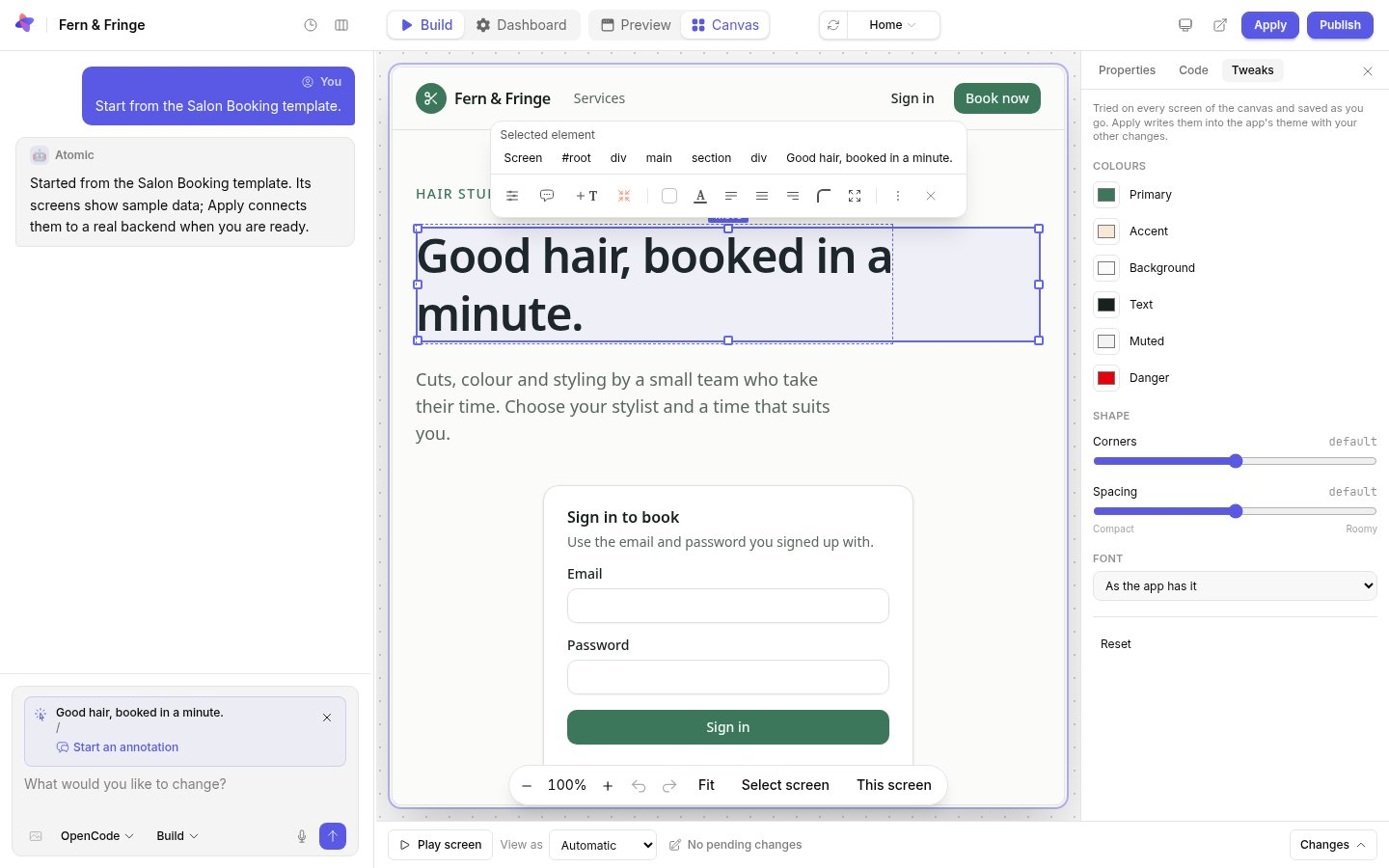
The Tweaks tab changes the theme on every screen at once: the primary, accent, background, text, muted and danger colors, the roundness of corners, spacing from compact to roomy, and the font. Changes show immediately on every screen of the canvas and are saved as you go. Apply writes them into the app’s theme with your other changes; Reset takes them back.
Undo and apply
Undo with Ctrl or Cmd+Z, and redo with Shift added or with Y, or use the arrows on the canvas bar. A single gesture, such as typing a word or one drag, is one step.
Everything you change is a draft in the canvas until you select Apply. Atomic then makes the changes in the app’s source, checks the result, and records a new version. Larger changes, such as a new page or a change to how something works, are best described in the conversation or in an annotation.